
Sleep is crucial for our overall health, yet many iPhone users find themselves frustrated when their device fails to track sleep data accurately. Understanding why this happens is essential, as proper sleep tracking can help you identify patterns, improve rest quality, and support better health. Whether it’s a minor setting issue or a more complex compatibility problem, uncovering the reasons behind your iPhone’s sleep tracking failures can empower you to take control of your sleep health. In this guide, we’ll explore common settings fixes to get your iPhone back on track, allowing you to make informed decisions about your sleep technology and enhance your nightly routine. Read on to uncover the solutions that can help you regain valuable insights into your sleep patterns.
Why Sleep Tracking Is Essential for Health
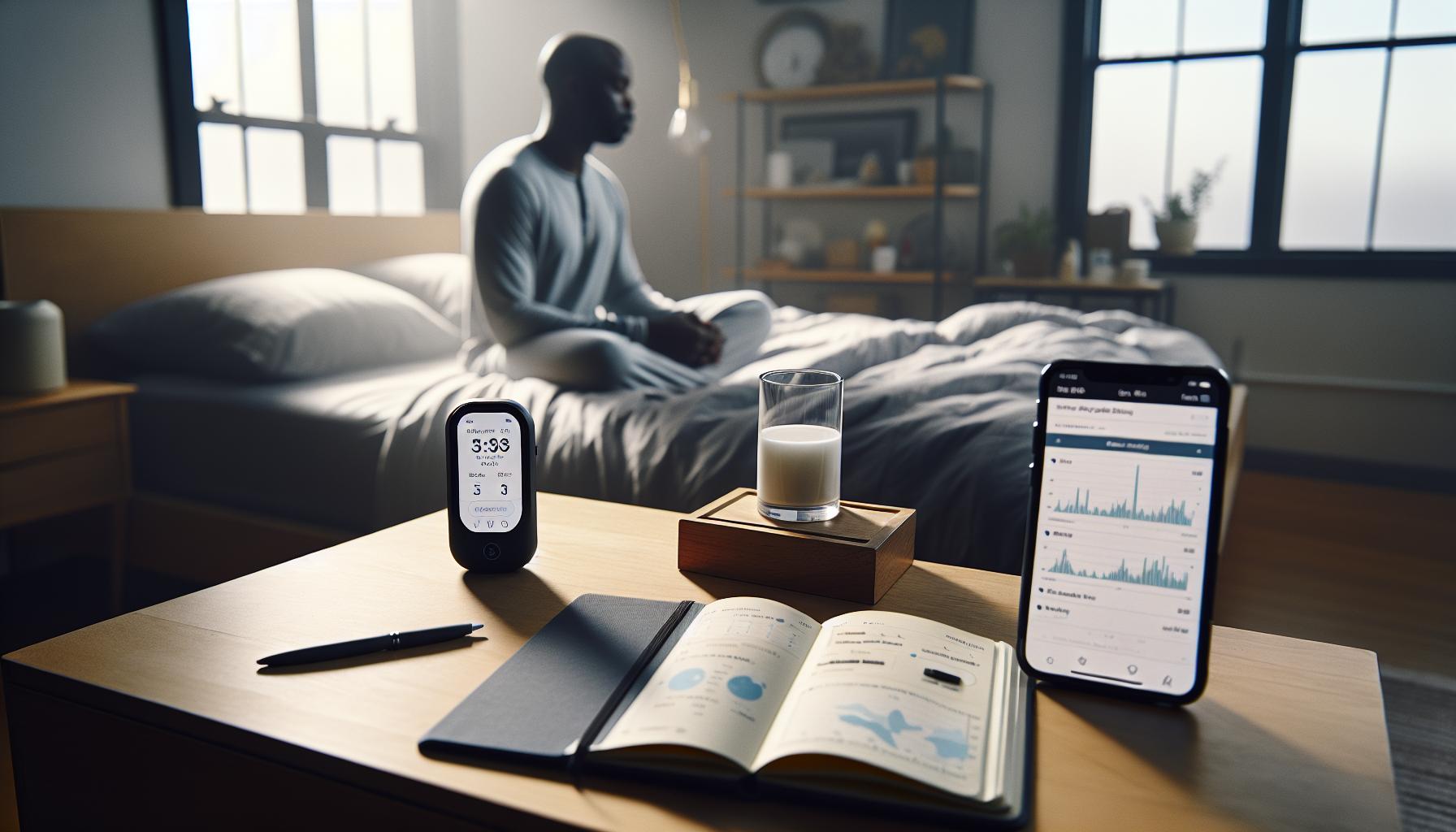
Tracking your sleep is more than just a passing trend; it’s a vital component for achieving optimal health and well-being. Studies reveal that quality sleep is essential for cognitive function, emotional regulation, and physical health. In fact, sleep deprivation has been linked to a myriad of health issues, including obesity, diabetes, cardiovascular disease, and weakened immune response. By understanding your sleep patterns through effective tracking, you’re better equipped to identify potential sleep disorders, make lifestyle adjustments, and improve your overall sleep hygiene.
A key benefit of sleep tracking lies in its ability to provide personalized insights into your sleep cycles. By monitoring your time spent in different stages of sleep-light, deep, and REM-you can gain clarity on your sleep architecture. For instance, if you’re consistently not reaching sufficient REM sleep, you might explore changes in your evening routine, such as reducing screen time, or consider environmental adjustments like optimizing your bedroom for better comfort. Moreover, sleep tracking can help in establishing a regular sleep schedule, which is crucial for both physical and mental health.
By leveraging the sleep tracking capabilities of modern devices, like your iPhone, you empower yourself to take charge of your sleep health proactively. However, it’s important to remember that these devices also have limitations. They’re not replacements for professional sleep evaluations, especially when serious sleep disorders are suspected. If you experience chronic insomnia or other sleep-related issues, combining personal data from your tracking device with insights from a healthcare provider can lead to a more comprehensive understanding of your sleep health.
Common Reasons Your iPhone Isn’t Tracking Sleep
Tracking sleep can reveal a wealth of information about your health and well-being. However, there are several reasons why your iPhone might not be capturing this important data. Understanding these issues can help you restore its functionality and gain insight into your sleep patterns.
First, ensure that Sleep Tracking is enabled in your Health app settings. Navigate to the “Health” app, tap on “Browse,” select “Sleep,” and check that the sleep schedule is properly configured. If your iPhone isn’t set up to track sleep, it simply won’t record it, which can happen if permissions are not granted or the feature was never activated.
Another common issue is that Do Not Disturb or Sleep Mode settings could inadvertently interfere with tracking. If you have activated Sleep Mode, your device may not accurately monitor your sleep stages. Make sure that these features are adjusted correctly, so your device is free to collect data throughout the night.
Wearable devices such as Apple Watches can enhance sleep tracking. If you’re using one, ensure it’s properly synced with your iPhone. Connection issues between your watch and phone can prevent data from being recorded. Regularly check for software updates, as an outdated OS can affect functionality.
Finally, your iPhone’s battery life plays a crucial role in sleep tracking. If your device is low on battery or in Low Power Mode, it may limit functions to conserve energy, ultimately leading to incomplete sleep data. Charge your iPhone regularly and avoid placing it in Low Power Mode during sleep hours.
By addressing these potential hurdles, you can optimize your iPhone for effective sleep tracking, allowing you to harness the full benefits of understanding your sleep health.
How to Check Your Sleep Tracking Settings
To ensure your iPhone accurately tracks your sleep data, it’s crucial to verify that your sleep tracking settings are correctly configured. Many users overlook this step, which can lead to misunderstandings about how well their device captures sleep patterns. Start by diving into the Health app, as this is the central hub for all health-related data.
Check Sleep Schedule
To begin, open the Health app on your iPhone. Tap on Browse, then select Sleep. Here, you can view your sleep schedule. Make sure you have set a consistent sleep schedule that reflects your actual bedtime and wake time. If this is not properly configured, your iPhone won’t effectively track your sleep phases.
Permissions and Settings
Next, check that you have granted the necessary permissions for sleep tracking. Navigate to Settings, and select Privacy & Security. From there, ensure that the Health app is allowed to access all relevant data. This will enable your device to gather information like your heart rate and movement, both essential for accurate sleep analysis.
Turn Off Sleep Mode
If you’re using Sleep Mode or Do Not Disturb, consider whether these features are impacting your tracking accuracy. While these modes can help you focus on winding down for the night, they may also limit your device’s ability to collect data. To adjust this, go to Settings, tap on Focus, and modify any relevant settings to allow for optimal data collection during the night.
Checking these settings regularly can help you avoid common pitfalls and ensure that your iPhone is providing you with an accurate picture of your sleep health. Remember that your iPhone is a tool designed to support your well-being, and simply verifying these settings can unlock valuable insights into your nightly rest.
Updating Your iPhone for Better Sleep Tracking
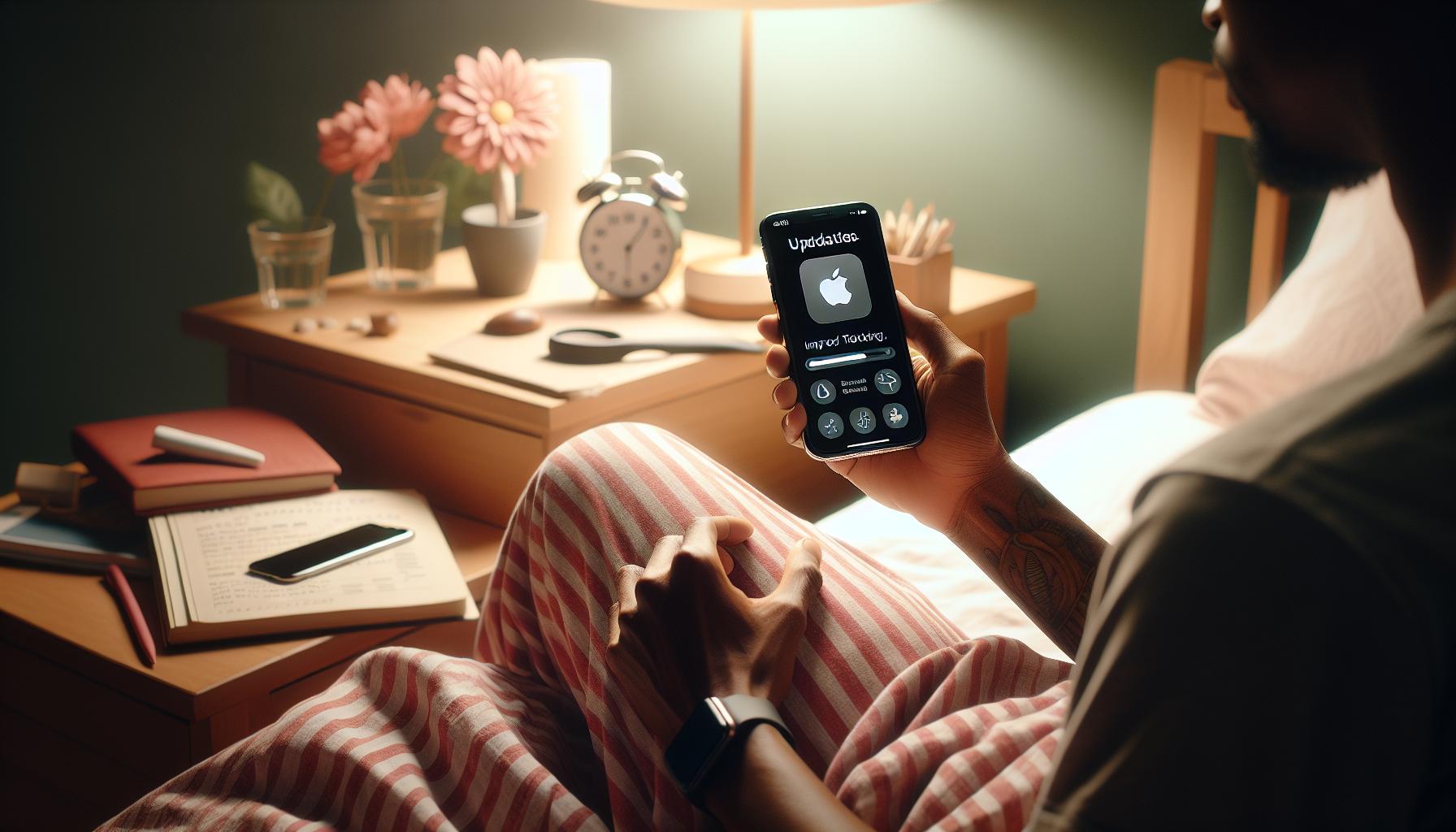
Keeping your iPhone updated is crucial for ensuring optimal performance, especially when it comes to features like sleep tracking. As Apple continually releases updates, these not only enhance functionality but also address bugs and improve the overall accuracy of health metrics. Regularly updating your device can be an easy yet often overlooked step in fine-tuning your sleep tracking experience.
Why Updates Matter
Updates often include improvements to the algorithms used in tracking sleep, which rely on data from your device’s sensors, such as the accelerometer and heart rate monitor. These enhancements may lead to better detection of sleep phases and overall more reliable sleep data. Furthermore, updates might introduce new features or settings that can optimize your sleep monitoring capabilities, making it easier to track your rest over time.
How to Update Your iPhone
To ensure your iPhone is running the latest version of the operating system, follow these simple steps:
- Open the Settings app on your iPhone.
- Scroll down and tap on General.
- Select Software Update. Your device will check for any available updates.
- If an update is available, tap Download and Install and follow the on-screen prompts.
It’s also a good idea to enable automatic updates, so your iPhone can install new versions overnight while you rest. This ensures that your device is equipped with the latest technology to aid in sleep tracking.
Compatibility Considerations
Before proceeding with an update, verify your iPhone’s compatibility with the new iOS version. Certain older models may not support the latest iOS features, which can directly impact sleep tracking capabilities. If you’re using an older model, weighing the benefits of updating against potential limitations is essential. Consider keeping abreast of which models run the newest software effectively, to maximize your sleep tracking experience and overall device functionality.
Regular updates are a simple yet powerful way to enhance your sleep tracking experience on your iPhone. By ensuring your device is equipped with the latest software, you can better harness technology to monitor and improve your sleep quality.
Third-Party Apps: Are They Worth the Trouble?
Many iPhone users wonder if third-party sleep tracking apps are worth the investment, especially considering the built-in features Apple provides. While your iPhone comes equipped with basic sleep tracking capabilities through the Health app, third-party applications can offer more detailed insights, personalized features, and enhanced user experiences that may contribute to better sleep quality.
When evaluating the value of third-party apps, a few key factors come into play: features, data accuracy, user interface, and cost. Apps like Sleep Cycle, Pillow, and Sleep Score provide advanced functionalities such as smart alarms that wake you up during the lightest sleep phase, sleep analysis based on sound recordings, and integration with other health metrics. However, the effectiveness of these features can vary significantly. Users frequently report that while some apps deliver impressive metrics and insights, others may not significantly outperform the native functionality already available on their devices.
Set-Up & Cost Considerations
Most of these apps require a straightforward setup process, often just needing basic permissions to track your sleep. However, many premium features are locked behind paywalls, which can range from one-time purchases to subscription models, affecting long-term costs. Users should consider whether the additional insights justify the expense. Before diving in, it’s wise to try free versions or trials, giving you a taste of what each application offers without financial commitment.
Data Accuracy and User Experience
While some third-party apps boast enhanced algorithms for sleep tracking accuracy, keep in mind that results can be inconsistent across different users due to various factors like individual sleep patterns, noise levels, and even the quality of the app’s algorithm. Reading reviews for each app can help you gauge user experiences and accuracy. Comparing the results from a third-party app with Apple’s built-in tracking might also provide insight into which data points are most consistent and reliable for your personal needs.
Ultimately, the decision to incorporate third-party sleep tracking apps into your nightly routine should stem from your personal goals for sleep improvement. For those who crave comprehensive insights and are willing to explore their sleeping habits at a deeper level, these tools could certainly enhance the experience. However, if you find success with Apple’s native options, they may provide all the information you need to optimize your rest.
Resetting Your Sleep Data: Step-by-Step Guide
If your sleep data on your iPhone isn’t tracking correctly, resetting your sleep data can help recalibrate the system and improve accuracy. Whether you’ve noticed inconsistencies in your sleep tracking or simply want a fresh start, following a clear and straightforward process can restore your device’s performance. Here’s how to reset your sleep data step-by-step.
Step-by-Step Reset Process
- Open the Health App:
Start by locating and opening the Health app on your iPhone. This app is where all your health metrics, including sleep data, are stored.
- Access Your Sleep Data:
Within the Health app, navigate to the “Browse” tab at the bottom of the screen. From there, scroll to find “Sleep” and tap on it to view your detailed sleep data.
- Delete Existing Sleep Data:
To reset your sleep data, you will need to delete the current entries. Tap on “Edit” in the upper right corner of the sleep data summary. From there, select the sleep entries you want to remove, and tap “Delete.” Confirm your choice to permanently erase this information.
- Reconfigure Sleep Settings:
After deleting your sleep data, go back to the main Sleep tab and adjust your sleep settings. Here, you can set your sleep schedule by selecting the days and defining your sleep goal, preferably aligned with your personal sleep needs.
- Activate Sleep Tracking:
Ensure that sleep tracking is enabled. Within the Sleep settings, toggle on the “Track Sleep with iPhone” or “Track Sleep with Apple Watch” if you use one. This activation prompts your iPhone to begin tracking sleep patterns again fresh from the reset.
What to Expect Post-Reset
Once you’ve reset and reconfigured your sleep data, allow a few nights for the system to calibrate and begin tracking your sleep again. Accurate sleep tracking will depend on consistency, so aim to stick to a regular sleep schedule.
Consider keeping your iPhone nearby while you sleep, as this can enhance tracking accuracy. If issues persist after the reset, it may be worth exploring potential software updates or consulting Apple support for further assistance.
By following these steps, you can optimize your sleep tracking experience, leading to better insights into your sleep patterns and, ultimately, improved sleep health.
Troubleshooting Sleep Tracking Issues on iPhone
Sleep tracking can be a valuable tool for understanding your sleep patterns and improving your overall health, but sometimes your iPhone may not capture this data effectively. Various factors can contribute to inaccurate sleep tracking, causing frustration for users eager to optimize their rest. One frequent issue is simply how sleep tracking settings are configured. Ensure that the “Sleep” and “Bedtime” features are properly set in the Health app, allowing your iPhone to recognize when you go to sleep and wake up.
Other common culprits for inadequate tracking include software glitches. If your device hasn’t been updated in a while, it may not perform optimally. Apple frequently releases updates that contain bug fixes and enhancements. Regularly checking for updates can solve many issues. Go to Settings > General > Software Update and verify if your iPhone runs the most current version. A simple software update can provide improvements that enhance sleep tracking capabilities.
Moreover, keep in mind that background noise and disturbances can affect tracking accuracy. If you’re in a noisy environment while trying to sleep, your iPhone’s ability to gauge your sleep patterns might be impaired. For instance, having your iPhone in a case or in an area where it can’t accurately sense your movements can lead to inconsistencies. Consider placing your phone on your mattress or bedside table, ensuring it stays close but unobtrusive.
If you continue to face issues even after checking settings and updating your software, consider resetting your sleep data. This process often helps recalibrate your device, providing a clean slate for more accurate tracking. By diligently following through on these steps and regularly monitoring your settings, you can significantly enhance your iPhone’s sleep tracking performance and gain clearer insights into your sleep health.
Understanding Sleep Tracking Accuracy and Limitations
Understanding how accurately your iPhone tracks sleep can be crucial for leveraging its capabilities to enhance your rest. Smart devices have brought a wealth of health monitoring tools right to our fingertips, yet they come with inherent limitations. While your iPhone uses advanced algorithms to analyze your movements and heart rate, it’s essential to recognize its boundaries.
One key factor affecting accuracy is the placement of your device. For optimal tracking, your iPhone should be placed on a stable surface, ideally on your mattress or bedside table, where it can best detect your sleep patterns. Having the device in a location that obstructs its sensors, or using a thick case, can result in inaccurate data. It’s also important to consider environmental factors such as background noise, which can interfere with sleep quality and consequently affect tracking.
The software itself plays a crucial role in how effectively this data is captured. Regular updates are essential, as Apple continually makes improvements and bug fixes that refine how sleep data is processed. If you notice discrepancies in your sleep data, check if your iPhone is up to date. Make it a habit to explore the sleep tracking features in the Health app, ensuring that all settings align with your sleep habits.
Moreover, it’s vital to remember that while your iPhone can provide interesting insights into your sleep patterns, it is not a substitute for professional sleep evaluation. The device may struggle to differentiate between light and deep sleep stages accurately. If you find persistent inaccuracies or have concerns about your sleep quality, consider seeking advice from a sleep specialist who can offer comprehensive testing and insights. Technology is a helpful tool, but it has its limitations and should complement, not replace, professional health guidance.
Best Practices for Optimizing Sleep Tracking on iPhone
It’s fascinating to see how our smartphones act as personal health assistants, especially when it comes to sleep tracking. Optimizing your iPhone for accurate sleep data can significantly enhance your understanding of your rest patterns. Here are some best practices to ensure your device is functioning at its best.
Placement Matters
The location of your iPhone while you sleep plays a critical role in tracking accuracy. For optimal results, place your device on a stable surface, such as your bedside table or directly on your mattress. Avoid positions where the phone could be blocked or jostled around, as this could interfere with the sensors that monitor your movements throughout the night. Another aspect to consider is to keep the phone away from electronic devices that may emit signals or noises that could disrupt your sleep.
Regular Software Updates
Keeping your iPhone’s software updated is essential for enhancing its functionality, including sleep tracking. Apple periodically releases software updates that fix bugs and improve the algorithms used for health metrics. To check for updates, navigate to Settings > General > Software Update. Ensuring that your software is current can lead to improvement in how well your iPhone tracks your sleep data.
Health App Settings
Your iPhone’s Health app includes specific settings related to sleep tracking that must be properly configured. Ensure that Sleep Analysis is enabled and that any sleep schedules you wish to track are set up. To do this, open the Health app, tap on the Browse tab, select Sleep, and configure both your sleep goals and bedtime. This not only helps the app track your sleep accurately but also enables personalized insights based on your patterns.
Environment and Usage
Lastly, consider environmental factors that may affect your sleep quality and, consequently, your tracking accuracy. Dim the lights and eliminate distractions before bedtime. If possible, avoid using your phone an hour before you sleep; excessive screen time can disrupt your circadian rhythm. Additionally, use Do Not Disturb mode to prevent notifications from interrupting your slumber.
By following these best practices, you can optimize your iPhone for effective sleep tracking, empowering you to make informed decisions about your sleep health while utilizing technology to complement your overall wellness journey.
Comparing iPhone Sleep Tracking Features Across Models
The iPhone has been evolving rapidly, and with each new model, sleep tracking features have become more sophisticated. Understanding the differences in sleep tracking capabilities across various iPhone models can empower users to choose devices that meet their health and wellness needs. For instance, the iPhone 12 and newer models incorporate advanced sensors that provide more accurate motion and sleep analysis compared to earlier versions. This could mean a more reliable assessment of sleep stages and disturbances, which are crucial for those serious about their sleep health.
One key feature that sets newer models apart is the enhanced integration with Apple’s Health app. Models from the iPhone 11 onwards include better algorithms that leverage both hardware and software to offer detailed insights into sleep patterns and trends. This involves the analysis of not only sleep duration but also the quality of sleep based on disturbances and restlessness detected throughout the night. Users can set customized sleep goals and receive personalized recommendations, making it easier to stay on track with their sleep health.
However, it’s essential to note that even the latest models may not track every aspect of sleep perfectly. Factors like device placement, whether it’s placed on a nightstand or under your pillow, and usage patterns play significant roles in tracking accuracy. All models rely heavily on movement, so placing the device in a way that it captures your sleep movements accurately is paramount.
If you’re considering an upgrade, review the sleep tracking features of each model. Models such as the iPhone 13 and 14 have reported improvements in battery life and sensors, which can contribute to longer sleep tracking without interruptions. When comparing options, ensure that you understand the unique capabilities of each model and how they align with your personal health goals.
In summary, newer iPhone models not only track sleep better but also offer features that allow for a more comprehensive understanding of your sleep health. Choosing the right model can make a significant difference in how well you can monitor and improve your sleep quality.
When to Consider Professional Sleep Testing
Understanding when to seek professional sleep testing can be a game-changer for your health. If you’re consistently waking up feeling unrefreshed, experiencing excessive daytime sleepiness, or snoring loudly, these could be signs of a sleep disorder that warrants further investigation. While your iPhone’s sleep tracking capabilities provide valuable insights into your sleep patterns, they may not capture everything, especially in cases of serious issues like sleep apnea or insomnia.
Professional sleep testing typically involves a polysomnography, where your sleep is monitored overnight in a sleep lab. Instead of just relying on motion detection like your iPhone, these tests record brain waves, blood oxygen levels, heart rate, and breathing patterns. Patients can expect a comfortable setup-often in a quiet, dark room where they’ll be connected to various monitoring devices. This approach can offer a comprehensive picture of your sleep stages and any disruptions, ensuring that healthcare providers can make a well-informed diagnostic decision.
If your sleep tracking data shows inconsistencies-such as frequent awakenings or extremely short sleep durations-consider discussing these findings with a healthcare professional. They might recommend further evaluation, particularly if you notice symptoms like loud snoring, gasping, or choking during sleep. These clues, evident in your iPhone’s metrics, can serve as critical indicators prompting a referral for a sleep study.
It’s also essential to factor in the costs associated with sleep studies, which often range from a few hundred to several thousand dollars, depending on the type of test and insurance coverage. Many insurance plans cover sleep studies, especially if ordered by a doctor. Be sure to check with your provider beforehand to understand the costs and coverage options available to you. This way, you can navigate your health decisions with confidence, knowing that you have both technological insight and professional guidance backing you.
Frequently Asked Questions
Q: Why isn’t my iPhone tracking my sleep data even though I wear it at night?
A: If your iPhone isn’t tracking sleep despite being worn at night, check that the Sleep Schedule is set up in the Health app and ensure that sleep tracking is enabled. Go to Settings > Health > Sleep to confirm these settings.
Q: How can I enable sleep tracking on my iPhone?
A: To enable sleep tracking, open the Health app, tap on the “Browse” tab, select “Sleep,” and then tap on “Full Schedule.” Here, you can set up your sleep schedule and ensure that Sleep Tracking is turned on.
Q: What should I do if my iPhone sleep data is inaccurate or missing?
A: If your sleep data appears inaccurate or is missing, restart your iPhone and ensure that your health data is synced properly. Checking for updates in Settings > General > Software Update can also help improve tracking reliability.
Q: Does my iPhone need to be on my wrist to track sleep?
A: Yes, for the most accurate sleep tracking results, your iPhone or Apple Watch should be worn on your wrist at night. Additionally, ensure that “Sleep” is active in the Health app for your device to record sleep metrics.
Q: Can third-party apps interfere with sleep tracking on my iPhone?
A: Yes, third-party apps that use sleep tracking can conflict with Apple’s built-in tracking. If you notice sleep data issues, consider reviewing or disabling these apps to see if performance improves.
Q: What to do if my iPhone is not in sleep mode but still tracks sleep?
A: Sometimes, your iPhone may incorrectly log sleep if it’s placed down or not worn correctly. Ensure you have adjusted your Sleep Schedule and try recalibrating your settings in the Health app.
Q: Why does my iPhone record sleep data but doesn’t show it in my Health app?
A: If your iPhone appears to record sleep data but it’s not visible in the Health app, check if you have the correct permissions set. Go to Settings > Privacy > Health and ensure the Health app has access to your sleep data.
Q: How often should I update my iPhone to ensure accurate sleep tracking?
A: Regular updates are crucial for accurate sleep tracking. Aim to check for iOS updates every few weeks in Settings > General > Software Update, as updates often improve functionality and fix bugs related to sleep tracking.
In Retrospect
Now that you’ve learned how to fix your iPhone’s sleep tracking issues, take action today to optimize your sleep health and get the insights you deserve. Don’t let technology hold you back-ensure your settings are configured properly and your device is ready to accurately monitor your rest.
For more detailed advice on sleep studies, wearable trackers, and maximizing sleep quality, check out our guides on “Understanding Sleep Disorders” and “The Best Sleep Tech for Better Rest.” Remember, understanding your sleep is the first step towards improving it.
Join our newsletter for the latest tips and resources, and don’t hesitate to share your experiences in the comments below. Your journey to better sleep starts here-let’s make it a restful one!