
Are you frustrated because your Garmin device isn’t tracking your sleep? You’re not alone! Many users experience this issue, which can disrupt your quest for better sleep health. Understanding why your Garmin may fail to monitor your slumber effectively is crucial-not just for tracking your rest, but for enhancing your overall well-being. In this article, we’ll explore common troubleshooting tips to help you resolve tracking issues and regain valuable insights into your sleep patterns. Read on to uncover practical solutions and empower yourself with the knowledge to optimize your sleep tracking experience.
Understanding Garmin Sleep Tracking Features
Garmin devices, known for their robust features and outdoor capabilities, also include impressive sleep tracking functionalities. These devices operate based on a combination of movement, heart rate, and rest patterns to provide insights into your sleep quality. By leveraging advanced algorithms, Garmin can differentiate between light, deep, and REM sleep stages, helping you gain a better understanding of your overall sleep health. This capability allows you to track trends over time, making it easier to identify factors that might be affecting your rest.
To utilize the sleep tracking features effectively, it is essential to ensure your Garmin device fits snugly on your wrist while you sleep. A loose device might not accurately capture your heart rate or movement, leading to inconsistent data. For those new to Garmin, familiarizing yourself with the sleep metrics displayed in the Garmin Connect app can be illuminating. You’ll find not only the duration of sleep but also the percentage of each sleep stage, providing a comprehensive overview that can inform lifestyle changes for better sleep quality.
When interpreting your sleep data, consider the variability inherent in sleep cycles. Factors such as stress levels, physical activity, and even caffeine intake can influence your nightly rest. This awareness can empower you to adjust routines or consult healthcare professionals if persistent sleep issues arise. Moreover, utilizing the insights from your Garmin device can encourage habits that foster improved sleep, such as maintaining a consistent sleep schedule and creating a restful sleeping environment. It’s about making informed choices based on the data Garmin provides, enabling you to enhance your overall well-being through better sleep practices.
Common Reasons Garmin Fails to Track Sleep
Garmin’s sleep tracking abilities are generally reliable, but there are a few common pitfalls that can hinder its performance. One primary reason your Garmin device may fail to track sleep accurately is improper fit. If the device is too loose on your wrist, it struggles to read your heart rate and movement effectively, resulting in inaccurate data. Aim for a snug fit-not too tight to cause discomfort, but secure enough to ensure sensor contact with your skin.
Another issue could stem from the settings you’ve chosen in your Garmin device. It’s crucial to ensure that sleep tracking is enabled in the device settings. Some users may inadvertently turn off this feature, leading to gaps in sleep data. Additionally, certain models may require a software update to enhance performance; check the Garmin Connect app to ensure your device is running the latest version.
Unfavorable sleeping environments can also contribute to poor tracking results. Excessive movement during sleep, such as frequent tossing and turning, can confuse the device’s algorithms. If you’re not following a consistent sleep schedule, the Garmin device might fail to identify your sleep patterns correctly. Lastly, high levels of alcohol or caffeine consumption before bed can disrupt sleep cycles and affect tracking accuracy.
To optimize your Garmin’s sleep tracking capabilities, make sure to regularly review and adjust device settings, maintain proper fit, and foster healthy sleep habits. This proactive approach can maximize the benefits of the technology, delivering more accurate insights into your sleep health.
How to Properly Set Up Your Garmin Device
Setting up your Garmin device properly is crucial for accurate sleep tracking. A well-configured watch not only helps in gathering data about your sleep patterns but also enhances the overall experience as you monitor your health. Start by familiarizing yourself with the device by reviewing the user manual, which is often available online if you misplace the physical copy. This guide will walk you through various settings that can significantly impact sleep data accuracy.
Begin with adjusting the fit of your Garmin watch. You want to ensure that it sits snugly on your wrist, just above your wrist bone. A loose fit will result in erratic heart rate readings and movement detection, undermining the quality of your sleep tracking. For best results, try wearing the watch to bed a few times during your initial setup period to find the correct tightness that’s comfortable yet secure.
Enabling Sleep Tracking
Once you have the device comfortably fitted, navigate to the settings menu on your Garmin device. Look for the sleep tracking feature-ensure it’s enabled. For most models, you can do this via the Garmin Connect app on your smartphone, which syncs the necessary settings to your watch. It’s also essential to check if your software is up to date. Frequent updates are released by Garmin to enhance functionality and fix bugs, including those that could impact sleep tracking.
- Open the Garmin Connect app.
- Select your device from the list.
- Navigate to Settings > Activity Settings > Sleep.
- Ensure sleep tracking is turned on.
Setting consistent bedtime and wake-up routines can further assist in optimizing your device’s performance. If your sleep schedule is irregular, the Garmin watch might struggle to interpret your sleep cycles accurately, resulting in incomplete data. Establishing a routine helps the device learn your patterns, ensuring better insights into your sleep quality over time.
By taking these practical steps to set up your Garmin device properly, you can lay a solid foundation for effective sleep monitoring. This proactive approach not only enhances the device’s accuracy but also arms you with the insights needed to improve your overall sleep health.
Checking Sensor Placement for Accurate Tracking
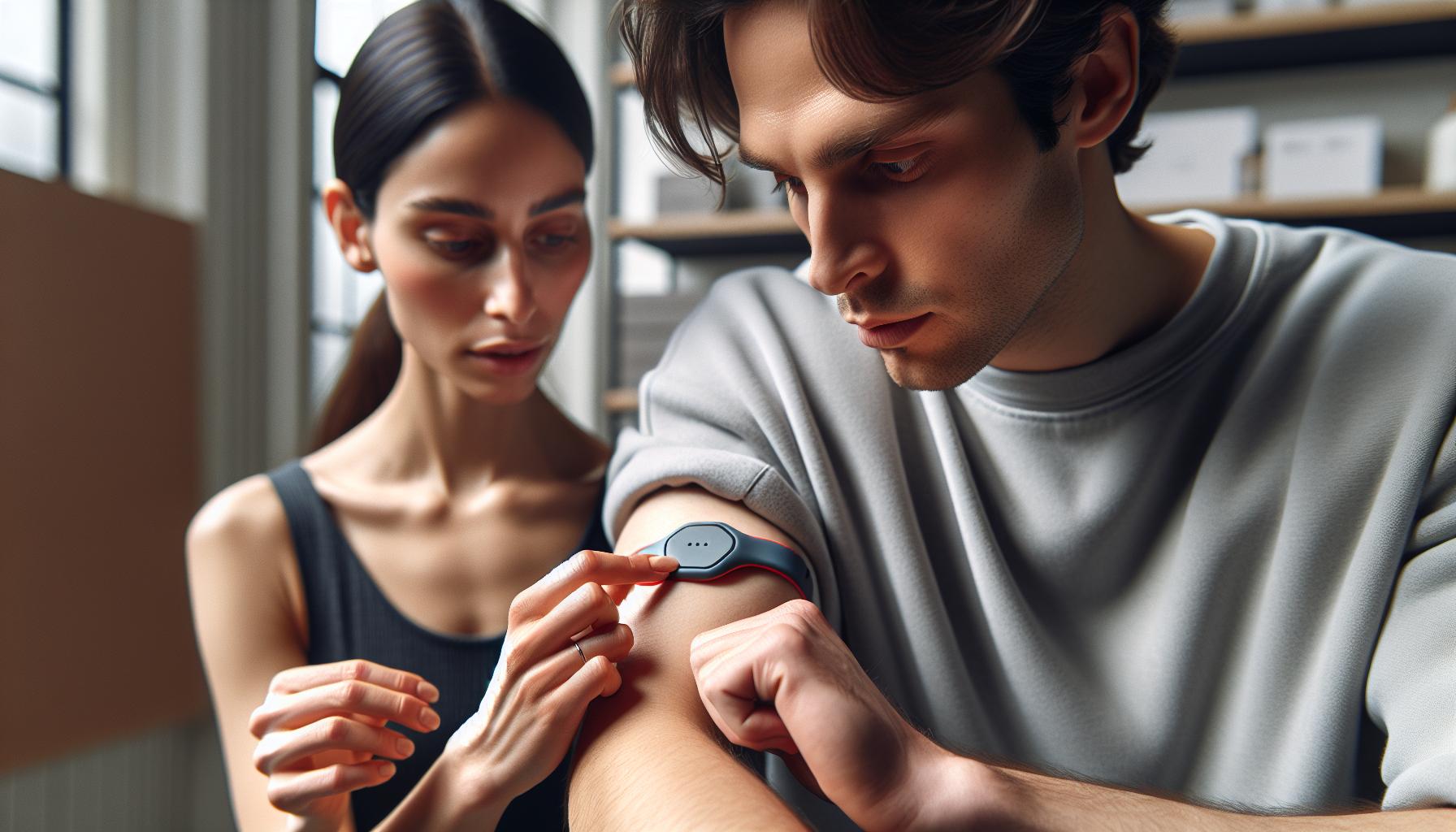
The effectiveness of your Garmin device in tracking sleep largely hinges on the proper placement and fit of the sensors. An incorrectly positioned device can lead to inaccurate tracking data, which may leave you puzzled about the quality of your sleep. To ensure optimal performance, it’s essential to wear the watch correctly and adjust it for maximum sensor efficacy.
Start by positioning your Garmin device snugly just above your wrist bone. This placement allows for the device’s sensors to contact your skin directly, which is crucial for accurately measuring heart rate and movement-two critical components in sleep tracking. If your watch is too loose, the sensors may struggle to pick up the necessary data, potentially overlooking key sleep phases. Conversely, a fit that is too tight could cause discomfort and may inadvertently trigger movements that the device misinterprets as wakefulness.
Once you’ve ensured a secure fit, take note of any additional factors that could interfere with sensor performance. For example, wearing the device over clothing rather than directly against your skin can obstruct readings. If you are using any lotions or lotions on your wrist, clean the sensor area regularly, as these can also hinder its ability to track accurately. Additionally, consider the location: for people with wrist tattoos, the ink could impact sensor effectiveness. If possible, try placing the device on the other wrist to see if tracking improves.
In your quest for better sleep tracking data, routinely check the sensor placement as part of your nightly routine. Over time, small adjustments in fit and positioning can make a significant difference in how well your Garmin tracks your sleep, giving you more accurate insights and helping you achieve your health goals. For those experiencing continued inaccuracies, reviewing the manufacturer’s guidelines on sensor care and operation might reveal further optimization tips to help enhance your tracking experience.
Tips to Improve Sleep Tracking Accuracy
To achieve accurate sleep tracking with your Garmin device, it’s essential to optimize how you wear and maintain it. Making slight adjustments can significantly enhance the reliability of the data you receive. First, ensure that your Garmin watch fits snugly around your wrist-this is vital for the sensors to function correctly. A poor fit could lead to inaccurate heart rate readings, which are crucial for determining sleep stages. If you’re unsure about the right fit, try wearing the device in different positions to see if one yields better tracking results.
Another tip is to minimize factors that could interfere with the sensor’s performance. For instance, avoid using lotions or oils on your wrist where the device sits, as these can block the sensors. If you have tattoos on your wrist, they might also disrupt sensor accuracy. If you notice persistent issues, experiment with placing your device on the opposite wrist or adjusting its tightness slightly to find the optimal position.
Additionally, it’s wise to regularly update your Garmin device’s software to ensure it’s performing its best. Updates often include bug fixes and enhancements that can improve functionality. Finally, maintaining a consistent bedtime routine can also help: a stable sleep schedule can allow the device to learn your patterns, leading to increasingly accurate tracking over time. By being mindful of these tips, you can improve the quality of your sleep data and ultimately make better-informed decisions about your sleep health.
Troubleshooting Sync Issues with the Garmin App
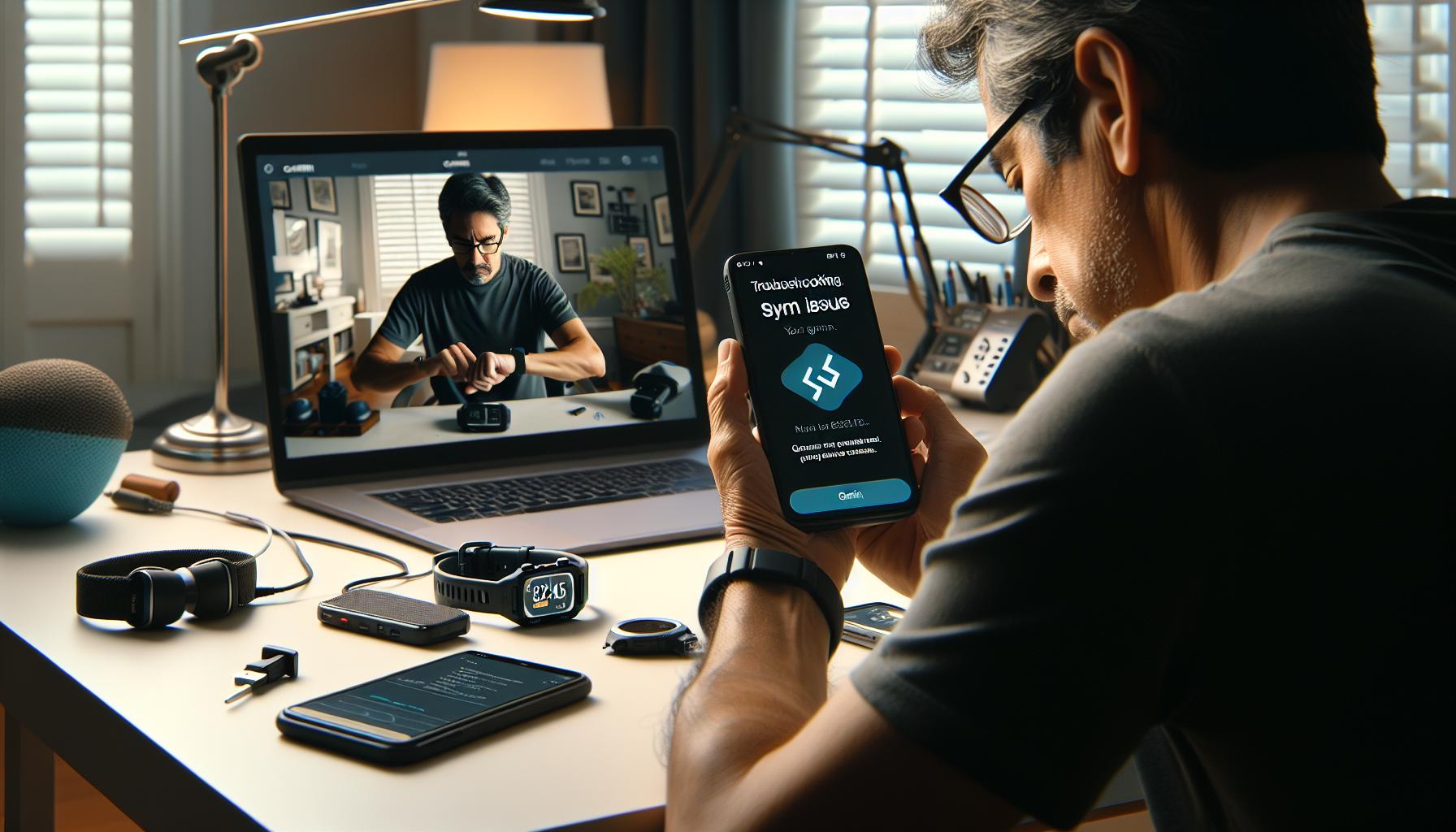
If you’re finding that your Garmin device isn’t tracking your sleep as expected, syncing issues might be at fault. Many users face challenges with their devices not communicating properly with the Garmin app, which can lead to incomplete or missing sleep data. Let’s delve into some troubleshooting steps to help you get your data back on track.
First, ensure that both your Garmin device and the Garmin app on your smartphone are up to date. Software updates often include fixes for known bugs that can hinder syncing. To check for updates, navigate to the settings on your Garmin device and the app. Restarting both your device and the app can also resolve minor glitches that may disrupt the connection.
Next, confirm the Bluetooth connection between your device and your smartphone is active. If you see the connection is weak or intermittent, try disconnecting and reconnecting the Bluetooth. This process can sometimes re-establish a stable link between the devices. If that doesn’t work, consider uninstalling and then reinstalling the Garmin app. Keep in mind, though, that reinstalling may require you to set up preferences again.
Another potential culprit could be the permissions you’ve granted the app. Check your smartphone’s settings to ensure the Garmin app has the necessary permissions to operate effectively, particularly for location services and syncing features. Additionally, unnecessary battery-saving modes on your phone might restrict the app’s background activity, hampering its ability to sync data seamlessly.
If you’ve gone through these steps and you’re still encountering issues, it may help to consult Garmin’s support documentation or reach out to customer support directly. They can offer additional insights and more advanced troubleshooting tailored to your specific device model. Remember, technology can sometimes be stubborn, but with a bit of patience and the right approach, you can typically resolve most syncing problems.
Interpreting Your Sleep Data: What It Means
Understanding the nuances of your sleep data can be the key to improving your overall sleep quality. When you look at the readings from your Garmin device, consider it a window into your nightly rest, offering insights into your sleep patterns and potential areas for improvement. Garmin’s tracking can provide valuable information about sleep duration, sleep stages, and even disruptions that may affect your rest quality.
Decoding Sleep Duration and Quality
Your Garmin device typically logs total sleep time, giving you a basic understanding of how long you spend asleep each night. However, simply knowing the number of hours isn’t enough. Pay attention to the quality of that sleep, which Garmin measures through a combination of factors like interruptions and time spent in various sleep stages-light, deep, and REM sleep. Aim for a balance: adequate time in deep sleep is crucial for physical recovery, whereas REM sleep supports cognitive function and emotional health. If your data consistently shows low deep or REM sleep, consider adjusting your bedtime routine or sleep environment.
Interpreting Sleep Stages
Garmin devices provide insights into your sleep stages which reveal how your nights break down into light, deep, and REM sleep. Understanding these stages can help you identify whether your sleep is restorative. For instance, if you find that you spend an inordinate amount of time in light sleep, it might indicate that you’re not fully relaxing or that there are disturbances in your environment affecting deeper sleep cycles. Here’s a simplified breakdown of what each stage means:
- Light Sleep: This is when you drift off and it’s easy to be awakened. It’s important for physical and mental recovery.
- Deep Sleep: This stage is critical for restorative sleep. Most physical recovery occurs here.
- REM Sleep: This is when dreaming occurs and is essential for memory consolidation and mood regulation.
If your reports indicate lower amounts of deep and REM sleep than expected, consider factors such as stress, caffeine intake, or sleep disruptions. Shifting your bedtime or reducing screen time before sleep can foster better transitions into these critical stages.
Utilizing Data for Sleep Improvement
Once you understand your patterns, take actionable steps based on the data. If you’re consistently waking during the night, investigate potential environmental factors: noise, light, or temperature may be playing a role. Creating a sleep-friendly environment can drastically improve the quality of your rest. You can also look into sleep hygiene practices, such as establishing a consistent sleep schedule or engaging in relaxing pre-sleep activities to help prime your body for a good night’s sleep.
In summary, effectively interpreting your sleep data not only informs how well you’re resting but also empowers you to make informed changes for a healthier lifestyle. With conscious effort and keen understanding, you can leverage your Garmin data to enhance your sleep quality and overall well-being.
Using Garmin Sleep Insights for Better Rest
Unlocking the secrets to a better night’s sleep often starts with understanding the data your Garmin device provides. Utilizing Garmin’s sleep insights can be a game-changer when it comes to optimizing your rest and enhancing overall well-being. These insights not only inform you about how long you sleep but also dive deeper into the quality of that sleep by analyzing various stages-light, deep, and REM. By looking closely at these readings, you can identify patterns and make targeted adjustments to improve your nightly rest.
One key feature is the ability to set sleep goals based on your data. Make use of the sleep score that Garmin generates for you each night. If you notice a consistent pattern of low scores, it might indicate that adjustments are necessary-whether that’s refining your evening routine, tweaking your sleep environment, or even addressing dietary habits that may interfere with sleep quality, such as caffeine consumption too close to bedtime. Consider establishing a regular wind-down routine that signals your body it’s time to sleep. Engaging in relaxing activities like reading or gentle stretching can enhance the transition into sleep.
Garmin’s insights also help pinpoint disturbances affecting your sleep continuity. If your device indicates frequent interruptions or limited time in deep sleep, take a look at your sleep environment. Is your bedroom quiet and dark? Are there any disruptive lights or noises? By creating a more conducive sleep environment-perhaps using blackout curtains, white noise machines, or adjusting room temperature-you can significantly improve your sleep quality.
Lastly, consistently tracking your sleep data fosters mindfulness about your habits. Regularly reviewing how lifestyle choices affect your sleep will empower you to make informed decisions. If despite these changes you still struggle with sleep quality, consider consulting with a sleep specialist to explore further options. Remember, leveraging the insights from your Garmin device is just one part of a comprehensive approach to better sleep-taking actionable steps based on that data is where the real transformation happens.
Understanding Sleep Stages and Their Importance
Understanding the different stages of sleep is essential for improving overall sleep quality and health, particularly when using a device like a Garmin for sleep tracking. Your Garmin not only measures how long you’ve slept but also breaks this sleep down into various stages: light, deep, and REM (Rapid Eye Movement). These stages play unique roles in your rest and recovery, and understanding them can empower you to make informed adjustments to enhance your sleep.
The sleep cycle typically lasts about 90 minutes and repeats throughout the night. In the early part of the cycle, you move through light sleep, which is crucial for physical health and touch on transitioning into deeper sleep. This stage is light enough that you can awaken easily. Following this, deep sleep occurs, which is vital for physical restoration, growth, and immune function. Finally, REM sleep comes into play, which supports cognitive functions such as memory consolidation and emotional regulation. By monitoring how much time you spend in these different stages, you can identify patterns that may be affecting your overall sleep quality.
If your Garmin is inconsistently tracking these stages, it could indicate issues with sensor placement or even syncing errors with the app. It’s essential that your device fits snugly on your wrist and is worn throughout the night to gather accurate data. Additionally, ensuring that your device’s software is up to date can resolve syncing issues that affect data accuracy. Monitor your sleep data closely. If you notice you’re spending less time in deep or REM sleep, it may be a sign to assess factors like stress levels, sleep environment, or lifestyle habits that could be impacting your overall sleep cycle.
By interpreting the sleep insights from your Garmin, you can create actionable strategies to enhance your nightly rest. For instance, if you find you’re not getting enough REM sleep, you might consider stress reduction techniques like meditation before bed or adjusting your nighttime routine to include activities that promote relaxation and comfort. Understanding these stages is not just about tracking sleep; it’s about unlocking the potential for a healthier, more restorative night’s rest.
When to Consult Support for Persistent Issues
If you find yourself wrestling with ongoing issues regarding your Garmin’s ability to track sleep, it’s crucial to know when to seek help. Many users may initially attempt to troubleshoot minor glitches themselves, but persistent problems can signal deeper issues or hardware limitations that require professional attention. Understanding when to consult support can save you both time and frustration, allowing you to make the most of your sleep monitoring experience.
Here are some signs that it might be time to reach out for support:
- Inconsistent Data: If your device consistently fails to record sleep data or shows unusual trends (like reporting hours of sleep when you know you didn’t sleep at all), this may indicate a fault requiring attention.
- Persistent Sync Issues: Frequent, unresolved sync problems with the Garmin app that disrupt data transfer can lead to inadequate sleep tracking. You should consider consulting customer support if you can’t resolve syncing troubles through standard updates or troubleshooting steps.
- Device Malfunctions: If your Garmin device isn’t functioning as expected-such as the screen freezing or battery draining at an alarming rate-it might be indicative of a hardware problem, which can require professional diagnosis.
- Software Updates Not Resolving Issues: You might notice sleep tracking inconsistencies after a new software update. If updating doesn’t resolve these issues, it’s wise to connect with Garmin support for assistance.
Taking these steps can help you determine whether your situation warrants professional support. When reaching out, provide specific details about the problems you’re experiencing. This allows customer service to assist you more effectively. Remember, understanding the limitations and capabilities of your Garmin device is key; it’s a powerful tool, but like all technology, it can encounter snags. If issues persist after trying suggested solutions, don’t hesitate to leverage Garmin’s expert support to get back on track for restful nights ahead.
Comparing Garmin Sleep Tracking to Other Devices
Garmin sleep tracking features can be quite comprehensive, but they often face stiff competition from other devices on the market. Whether it’s the accuracy of sleep data, the user interface, or the integration with health apps, the differences can significantly impact your experience as a user. For instance, brands like Fitbit, WHOOP, and Apple have developed robust systems for tracking sleep, each with unique strengths and weaknesses.
When comparing Garmin devices to Fitbit, one notable point is Fitbit’s advanced sleep stages feature. Fitbit offers a detailed breakdown of time spent in light, deep, and REM sleep, which can provide insights into your sleep quality. In contrast, while Garmin also breaks down sleep stages, users have noted occasional discrepancies in data accuracy, particularly if the device isn’t worn snugly. Moreover, Fitbit’s app interface tends to be more user-friendly and visually appealing, making it easier for users to understand their sleep data at a glance.
WHOOP, on the other hand, utilizes a subscription model that provides in-depth analyses of sleep and recovery, offering personalized insights that can help optimize performance and health. While Garmin offers thorough sleep tracking, WHOOP’s analysis is often perceived as more data-driven and user-focused, especially for athletes looking to enhance performance based on recovery metrics. Garmin users may find themselves needing to delve deeper into the data via their app, which may not provide the same level of personalization without additional features.
Key Comparison Points
| Feature | Garmin | Fitbit | WHOOP |
|---|---|---|---|
| Sleep Stages Tracking | Yes, but less detailed | Yes, highly detailed | Yes, personalized analysis |
| User Interface | Functional | More user-friendly | Clean and minimalistic |
| Subscription Model | No | No | Yes |
| Performance Metrics | Standard metrics | Standard metrics | In-depth recovery focus |
Ultimately, choosing the right device depends on your individual needs and what you prioritize in sleep tracking. Garmin’s offerings are solid, particularly for users who enjoy outdoor activities and want a rugged, multi-functional smartwatch. However, if deep analytical insights or a more interactive app experience is crucial for your journey to better sleep, exploring alternatives might be necessary. Understanding the nuances of each device can empower you to make an informed decision tailored to your lifestyle and sleep health objectives.
Exploring Alternatives If Garmin Isn’t Working
If your Garmin device isn’t tracking your sleep as expected, you may want to consider alternative options that could better meet your sleep monitoring needs. Understanding that technology can sometimes fall short is important; the key is finding what works best for you. While Garmin’s offerings have robust features, other brands excel in specific aspects of sleep tracking.
Wearable Alternatives
If you are seeking a more detailed analysis of your sleep stages, brands like Fitbit and WHOOP offer advanced capabilities. For instance, Fitbit provides a comprehensive breakdown of light, deep, and REM sleep, which can significantly enhance your understanding of your sleep quality. Their user-friendly interface is designed to help you visualize your data easily, making it accessible even for newcomers to sleep tracking.
WHOOP, on the other hand, operates on a subscription model. It emphasizes recovery metrics alongside sleep tracking, offering personalized insights that can help you optimize your nightly rest and overall performance. If you are engaged in athletic pursuits, the subscription might be a worthwhile investment for its in-depth analytics tailored to your specific fitness goals.
Using Sleep Tech and Devices
Beyond wearables, consider innovative sleep technology like Eight Sleep. This smart mattress covers track your sleep performance while optimizing your sleep environment, such as temperature adjustments, creating a more restful sleep atmosphere. With such devices, you gain insights into your sleep quality without needing to wear anything on your wrist.
When exploring alternatives, also think about your setup. For instance, if you choose to switch to a different wearable, ensure you familiarize yourself with the new device’s setup process. Many brands provide instructional videos and customer support to guide you through syncing and data interpretation.
Consulting Professionals
Finally, if you continue to face issues or if sleep disturbances persist-despite tracking-you may want to consult with a healthcare professional. Traditional sleep studies or polysomnography can reveal underlying issues such as sleep apnea or other sleep disorders that consumer-grade devices may not accurately detect. Finding clarity in your sleep issues can provide peace of mind and lead to better rest.
In summary, your sleep journey should not be limited by your current device. Exploring various technologies geared towards sleep tracking can offer you nuanced insights into your rest patterns, leading to improved sleep health. Always remember to weigh the options carefully to find a solution that fits your lifestyle and sleep health goals.
Frequently asked questions
Q: Why is my Garmin not recording my sleep data?
A: Your Garmin might not record sleep data due to improper setup or a loose fit. Ensure that your device is worn correctly on your wrist and that sleep tracking is enabled in the settings. Also, check if your device is updated to the latest firmware for optimal performance.
Q: How can I improve sleep tracking accuracy on my Garmin?
A: To improve accuracy, wear your Garmin snugly on your wrist while sleeping and keep the heart rate monitor clean. Additionally, ensure that your sleep settings are correctly configured in the Garmin app. Regularly charging your device can also help maintain accurate sensor readings.
Q: What should I do if my Garmin sleep tracking is inconsistent?
A: If sleep tracking is inconsistent, review the sensor placement and ensure the device is worn correctly. Restart your Garmin and sync it to the Garmin app to refresh your data. If issues persist, consider consulting Garmin support for deeper troubleshooting.
Q: Can environmental factors affect my Garmin sleep tracking?
A: Yes, environmental factors like room temperature, noise, and light levels can affect sleep quality and consequently your Garmin’s ability to track accurately. Try to create a calm sleeping environment for more reliable data.
Q: Why isn’t my Garmin syncing sleep data with the app?
A: Sync issues can arise from Bluetooth connectivity problems. Ensure that your Garmin is within range of your smartphone and that the Bluetooth connection is active. Restart both devices and try syncing again. For more details, refer to our section on troubleshooting sync issues.
Q: What if I don’t see sleep stages on my Garmin?
A: If sleep stages are missing, ensure that your device supports this feature and that it is enabled. Check the settings within the Garmin device and app. If everything is set correctly and data is still lacking, consider resetting your device.
Q: How do I know if my Garmin knows I’m asleep?
A: Garmin detects sleep by analyzing your movement and heart rate data. If your sleep tracker indicates no data but you believe you slept, make sure you wore the device correctly throughout the night and that sleep mode is activated.
Q: When should I contact Garmin support regarding sleep tracking issues?
A: Contact Garmin support if you’ve tried basic troubleshooting steps-like checking settings, syncing issues, or updating firmware-and you still experience problems. Persistent issues that affect your ability to track sleep reliably may require professional assistance.
Closing Remarks
If your Garmin isn’t tracking your sleep as expected, you now have the tools and tips to troubleshoot effectively. Remember, addressing settings, ensuring proper fit, and staying updated on software can make all the difference. If you’re still facing issues, don’t hesitate to dive deeper into our detailed guides on Garmin device optimization and user experiences that can enhance your sleep tracking journey.
For further assistance, explore our articles on enhancing your sleep quality with wearables and the benefits of sleep studies. Don’t forget to check out our tips on choosing the right device for your sleep needs and discovering how to maximize your Garmin’s capabilities.
Stay informed and empowered in your sleep health journey! Join our newsletter for more insights and updates, and feel free to share your experiences or questions in the comments below. Your feedback can help others in achieving better sleep tracking success.
Get our latest guides, news, and insights highlighted in your Google Search & AI Overviews.