
Did you know that many users find sleep tracking on devices like Garmin to be surprisingly inaccurate? For those frustrated by the discrepancies or simply seeking a more peaceful night’s rest, disabling sleep tracking can be a game-changer. In this guide, we’ll walk you through how to turn off sleep tracking on your Garmin device in just seconds, empowering you to take control of your sleep data. Whether you’re struggling with irregular sleep patterns or just wish to avoid the sleep statistics that keep you up at night, this straightforward process aims to address your concerns and enhance your overall sleep experience. Stay tuned to learn how a few quick adjustments can lead to better sleep health and peace of mind.
How Sleep Tracking Works on Garmin Devices
Garmin devices utilize a combination of advanced sensors and algorithms to monitor and analyze your sleep patterns. When you wear a Garmin watch or fitness tracker during sleep, it tracks your movements and heart rate to determine the various stages of sleep you experience-these typically include light sleep, deep sleep, and REM (Rapid Eye Movement). The device relies on accelerometer data, which captures your physical movements, and heart rate variability to estimate when you fall asleep and wake up effectively.
The sleep tracking feature is designed to provide users with insights into their overall sleep quality. This is accomplished by creating a timeline of your sleep duration and the different phases of sleep throughout the night. For instance, a typical sleep tracking report may show how long you spent in each sleep stage, along with any instances of wakefulness. Garmin also compares this data to established norms, helping you to assess whether you’re getting enough restorative sleep.
It’s important to note that while the sleep tracking feature can be informative and helpful, its accuracy can vary significantly based on factors such as individual sleep habits and lifestyle. As many users have experienced, discrepancies can occur-such as overestimating sleep duration or failing to recognize awakenings during the night. Some users have reported inaccuracies with sleep tracking during shifts or changes in their regular sleep patterns, which can further complicate the data interpretation [[1]].
Understanding how these devices work is crucial for maximizing their benefits. While they provide a general overview of your sleep, they are not substitutes for professional sleep studies or consultations. The data should be used as a guideline rather than a definitive measure of sleep health. Users can take proactive steps to boost the accuracy of their sleep tracking by calibrating their devices correctly and considering their personal sleep patterns and environments.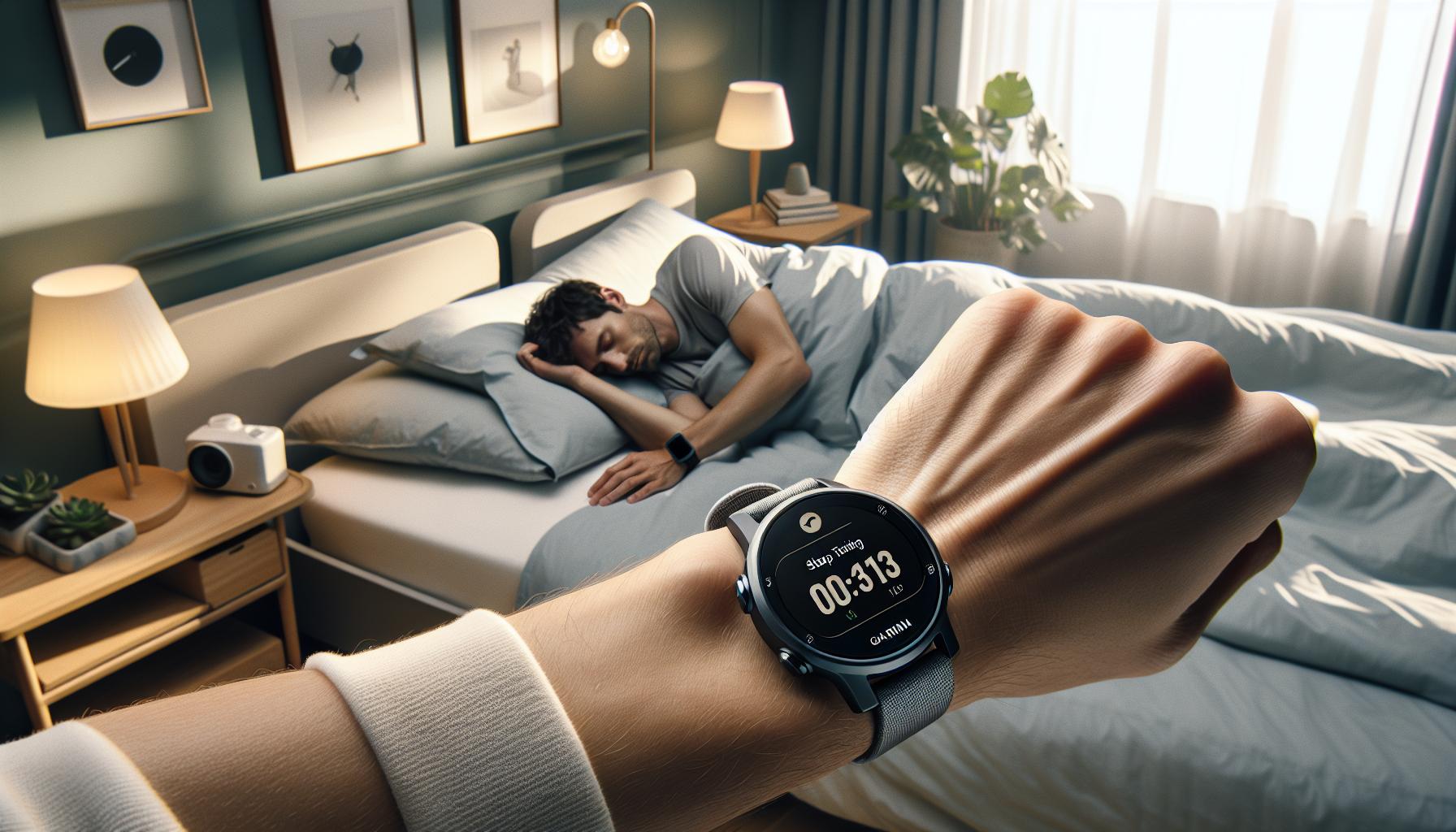
Reasons to Disable Sleep Tracking
Disabling sleep tracking on your Garmin device can be a strategic decision for various reasons, particularly if you’ve found that the feature is not serving your specific needs. Many users experience frustration with the inaccuracies in sleep data, which can stem from several factors. For example, your unique sleep pattern, which might include irregular hours or frequent awakenings, can lead to misleading interpretations by the device. This is especially true for shift workers or those with disrupted sleep schedules, as the system may not accurately reflect your true sleep quality or duration, potentially leaving you with a false sense of understanding regarding your rest habits [[3]].
Furthermore, some users have reported instances where their Garmin devices simply stop recording sleep data altogether. For example, after a software update, a user might find that their watch displays “0 sleep data recorded,” leading to concern or confusion about the device’s reliability [[2]]. In situations like these, disabling the feature may provide clarity and prevent additional frustration, allowing you to focus on other fitness metrics that are more accurately tracked.
Another significant factor is the reality that sleep tracking may inadvertently affect your sleep quality. If you’re constantly aware that a device is monitoring your sleep, it can create anxiety or disrupt the natural flow of rest. For those looking to foster a more organic sleep environment, turning off this feature can alleviate pressure and help establish a more restorative sleep cycle.
Ultimately, if the sleep tracking on your Garmin device doesn’t align with your lifestyle or if it causes more stress than benefits, disabling it can streamline your experience and help you better utilize the functionalities that truly serve your health and wellness goals.
Step-by-Step Guide to Turn Off Sleep Tracking
Disabling sleep tracking on your Garmin device can be a simple solution if you find the feature isn’t accurately reflecting your sleep patterns or if it’s causing unnecessary anxiety about your rest. Many users report frustrations with sleep data, noting inconsistencies that detract from the overall usefulness of the device. Fortunately, the process to turn off sleep tracking is straightforward and can usually be accomplished in just a few seconds.
To turn off sleep tracking on your Garmin device, follow these steps:
Step-by-Step Process
- Access the Menu: Begin by pressing the button to access the main menu on your Garmin device. The exact button may vary based on your model, commonly being the ‘Menu’ button or by swiping the screen.
- Navigate to Settings: Scroll through the menu options until you find the ‘Settings’ option. This is where you can customize various features of your device.
- Select Activity Tracking: Within the settings menu, look for the ‘Activity Tracking’ or ‘Health Monitoring’ category. This may vary based on the model of your Garmin device, so read through the options carefully.
- Turn Off Sleep Tracking: In the activity tracking menu, locate ‘Sleep Tracking.’ Select this option, and you will see the setting to toggle sleep tracking on or off. Select ‘Off’ to disable the feature.
- Confirm Changes: After turning off the sleep tracking feature, make sure to confirm any prompts that may appear to save your changes.
- Exit the Menu: Simply exit the settings menu, and your device will no longer track your sleep patterns.
By taking these steps, you can instantly regain control over what metrics you want your device to track. If you find that the lack of sleep data helps you focus on other fitness metrics or simply leads to a more restful night’s sleep, you have made a positive change. Remember, the effectiveness of wearables can vary greatly among users, and sometimes, less is more when it comes to health monitoring.
Troubleshooting Common Issues with Sleep Tracking
Many Garmin users experience challenges with sleep tracking, leading to confusion and frustration. From inaccuracies in detecting sleep times to failure in recognizing movements during the night, these issues can diminish the overall effectiveness of your device. Understanding common troubleshooting steps can significantly enhance your experience and improve the reliability of sleep data.
Common Issues and Solutions
One prevalent issue is the watch misinterpreting your activities as sleep. For instance, if you read or watch TV in bed, sleep tracking might commence prematurely. To resolve this, ensure that you wear the device snugly on your wrist; a loose fit can lead to inaccurate readings. Additionally, consider adjusting the sleep schedule settings within the Garmin app to better reflect your actual sleep patterns.
Another challenge users face is the device failing to record sleep data entirely. If your Garmin watch reports “0 sleep data recorded,” this could stem from software glitches post-update or issues with your watch’s firmware. Restarting the device often resolves temporary software hitches. If you’ve tried restarting and still face issues, check for any firmware updates that may need to be installed.
Sometimes, discrepancies occur if the sleep tracking feature has been toggled off unintentionally. Double-check the settings following the step-by-step guide to ensure sleep tracking is activated. If data continues to appear inaccurate even after verifying the settings, it may be helpful to reset your device to factory settings, noting that this will erase all stored data.
Seeking Further Support
If you’ve applied these troubleshooting methods without success, consider reaching out to Garmin support. They can provide more specialized recommendations based on your specific device model and the issues you’ve encountered. Engaging with community forums dedicated to Garmin devices can also offer insights from fellow users who may have experienced similar problems.
By being proactive about common troubleshooting steps, you’ll be better equipped to optimize your sleep tracking experience with your Garmin device, ensuring that your health data is as accurate and useful as possible.
Impact of Disabling Sleep Tracking on Data Accuracy
Disabling sleep tracking on your Garmin device can significantly impact the accuracy of the sleep data you receive, but understanding this effect is crucial for making informed decisions about your health routine. When you turn off sleep tracking, you’re essentially opting out of a tool that analyzes your sleep patterns and provides insights that could help improve your rest and overall well-being. Without this data, you miss out on valuable metrics about sleep quality, duration, and disturbances, which are vital for adjusting habits for better sleep hygiene.
Additionally, disabling the feature can lead to a reduced understanding of how external factors-like exercise or screen time-affect your sleep. For instance, Garmin devices not only track when you sleep but also analyze your heart rate variability and movement during the night, helping you identify trends or triggers for poor sleep. By turning off sleep tracking, you’re not only losing immediate data but possibly overriding your chance to learn about these associations over time. If you’re frequently waking up tired or feeling unrested, detailed sleep data might lead to a clearer path toward identifying the root causes.
Moreover, it’s worth noting that turning off sleep tracking can affect the overall accuracy of the health metrics that Garmin devices provide. Since many Garmin features are interconnected, such as recovery time estimates and daily activity suggestions, the absence of comprehensive sleep data can result in less informed recommendations. This can hinder your fitness journey and make it challenging to achieve optimal performance.
In cases where users think their device delivers inconsistent sleep tracking data, disabling the feature might seem like a quick fix. However, it might be more beneficial to explore troubleshooting options or adjusting settings for enhanced accuracy. Engaging with community forums or customer support can provide insights tailored to your specific model and usage, ensuring you tackle any inaccuracies head-on while still benefiting from the sleep tracking technology.
Alternatives to Sleep Tracking on Garmin
It’s important to know that while sleep tracking on Garmin devices offers valuable insights into your sleep patterns, there are alternatives to consider if you decide to disable this feature. Whether you’re seeking a different way to monitor your rest or simply looking for added resources, a variety of options can keep you informed about your sleep habits.
One option is to utilize dedicated sleep monitoring devices or apps. These often leverage advanced technology and algorithms to provide a detailed analysis of your sleep stages, disturbances, and overall quality. For instance, devices like the Oura Ring or smart sleep masks can offer in-depth metrics on sleep phases and recovery, complementing the information you might typically get from Garmin’s tracking.
Additionally, consider incorporating practices such as keeping a sleep journal. By manually logging your sleep times, quality, and how you feel in the mornings, you can develop a clearer understanding of your sleep patterns over time. This method can provide insights into how lifestyle choices-like caffeine intake or exercise-affect your rest without relying on a device.
It’s also helpful to explore wearables that focus on health and fitness metrics beyond sleep. Many fitness trackers and smartwatches provide comprehensive wellness insights, including heart rate variability and stress levels, which can influence your sleep quality. By keeping an eye on these related metrics, you can make informed decisions that contribute to a better night’s sleep.
Finally, engaging in lifestyle adjustments-like establishing a regular sleep schedule, creating a calming bedtime routine, or utilizing sleep-enhancing technologies (think white noise machines or blue light filters)-can significantly enhance your sleep quality without needing to fully rely on device-based tracking. These alternatives not only empower you to take proactive steps for better sleep but also help you build a holistic approach to your health and wellness.
Understanding Sleep Tracking Features on Garmin
Garmin devices offer a range of features for tracking sleep, aiming to provide users with insights into their nightly rest patterns. These features include the ability to monitor various sleep stages-light, deep, and REM sleep-as well as overall sleep duration. This data can be valuable for understanding how well your body recovers overnight and can help identify potential sleep issues.
To enhance the accuracy of sleep tracking, Garmin devices utilize advanced sensors to detect movements and heart rates throughout the night. For many users, this can highlight trends in their sleep quality and provide actionable insights, such as how lifestyle factors-like exercise and stress-impact their rest. However, it’s crucial to note that while these features can be informative, they are not perfect. Many users have reported inaccuracies, often feeling that the devices oversimplify complex sleep patterns or misclassify movements as wakefulness [1[1].
Aside from tracking sleep stages, Garmin also tracks various metrics that can relate to sleep health, such as heart rate variability (HRV) and disturbances during the night. The data collected through these sensors is then synchronized with the Garmin Connect app, where you can review your sleep trends over time. Some users recommend tweaking settings in the app or even utilizing additional features such as “Do Not Disturb” mode to optimize the experience for better tracking accuracy [2[2].
Understanding these features allows users to leverage their Garmin devices effectively, maximizing the value of the data collected. Being aware of the limitations, while utilizing the sleep tracking functions thoughtfully, can empower users to make informed decisions about their sleep health. Whether or not you find sleep tracking beneficial ultimately depends on personal needs and how much you value the insights provided by the device.
User Experiences: Disabling Sleep Tracking
Many users find themselves questioning the effectiveness of sleep tracking on their Garmin devices. While these wearables aim to offer insights into nightly rest patterns, some users opt to disable this feature due to various frustrations. As one user from the Garmin forums noted, inaccuracies can arise in sleep detection, causing the device to mistakenly track periods of wakefulness as sleep, leading to unhelpful data [1]. For some, particularly those with erratic sleep schedules, such inaccuracies can feel misleading and impede efforts to monitor sleep health effectively.
Certain users have experienced significant issues, particularly those with unique sleeping conditions or shift workers, whose varied sleep patterns can further complicate tracking. For instance, a user shared their struggle with the watch’s inability to adapt to their changing sleep schedule, leading to even more inaccuracies in sleep information and skewing health stats [3]. In these cases, users may find more value in disabling sleep tracking entirely, opting to rely on alternative methods for sleep monitoring rather than dealing with the frustration of unreliable data.
Disabling sleep tracking on Garmin devices can be beneficial for those who find the information less than useful. Many users illustrate that turning off this feature can lead to a more straightforward experience without the clutter of erroneous data, allowing them to focus on other health metrics that the device tracks more accurately. In essence, each user’s relationship with their Garmin device’s sleep functionality will vary depending on personal circumstances, making the option to disable it a valuable choice for some.
Adjusting Settings for Enhanced Sleep Tracking
To optimize sleep tracking on your Garmin device, adjusting specific settings can significantly enhance the accuracy and utility of the data gathered. Many users don’t realize that the device’s sleep detection algorithms can be influenced by your input and preferences, helping it better align with your personal sleep patterns. Here’s how you can fine-tune these settings for a more informative tracking experience.
Start with sleep schedule settings. If you have a regular sleep routine, set your “Sleep Time” and “Wake Time” in the device or app. This helps your watch understand when you’re likely to be asleep, thereby reducing the chances of misinterpreting your movements as wakefulness. For those with varying sleep patterns, such as shift workers, manually activating sleep mode when you go to bed and deactivating it when you wake up can provide more accurate data on your sleep quality.
In addition, make sure your wearable is snugly fit on your wrist. If the device is too loose, it may not accurately track your heart rate or movements during sleep, leading to erroneous sleep data. A tight fit will increase the likelihood of correct readings of your body’s nocturnal metrics, enhancing the overall tracking experience.
Lastly, periodically check for software updates for your Garmin device through the Garmin Connect app. Updates often include enhancements for sleep tracking algorithms that can improve performance. Keeping your device updated ensures you benefit from the latest improvements and fixes, allowing for a more reliable understanding of your sleep patterns over time.
These adjustments empower you to tailor your sleep tracking experience, ultimately providing valuable insights as you work towards better sleep health.
Comparing Garmin Sleep Tracking to Other Wearables
When it comes to sleep tracking, Garmin devices face stiff competition from various wearables on the market, each promising a unique approach to monitoring our nightly rest. Garmin’s sleep tracking offers essential metrics such as total sleep time, sleep stages, and movement throughout the night. However, some users find Garmin’s performance lacking compared to other brands, especially in terms of accuracy and data detail.
One key differentiator among sleep tracking devices is the sophistication of their algorithms and sensors. Brands like Fitbit and Apple Watch provide more nuanced features, including detailed sleep stage breakdowns (light, deep, REM). While Garmin tracks sleep patterns, it’s often noted that their assessments might score lower on certain insights, with users reporting inaccuracies in sleep data. For example, many Garmin users have shared their frustrations in forums about the device recording little to no sleep data or misinterpreting periods of wakefulness as sleep [[1]](https://forums.garmin.com/outdoor-recreation/outdoor-recreation/f/fenix-7-series/384783/no-more-sleep-tracking).
In contrast, devices like the Oura Ring or Samsung Galaxy Watch offer increasingly advanced tracking, combining biometric data with sleep analysis to provide a more holistic view of sleep health. The Oura Ring, for instance, integrates heart rate variability and body temperature to give feedback about overall wellness and readiness for the day, making it a compelling choice for those who prioritize accuracy and actionable insights over basic tracking.
Ultimately, the best option for you will depend on your specific sleep tracking needs and how you plan to use that data. If you’re seeking detailed metrics to inform your sleep health, it might be worth considering alternatives to Garmin that better meet those expectations. However, if you’re already in the Garmin ecosystem and find value in their other fitness tracking capabilities, sticking with a Garmin device and adjusting your settings for better accuracy might still serve you well.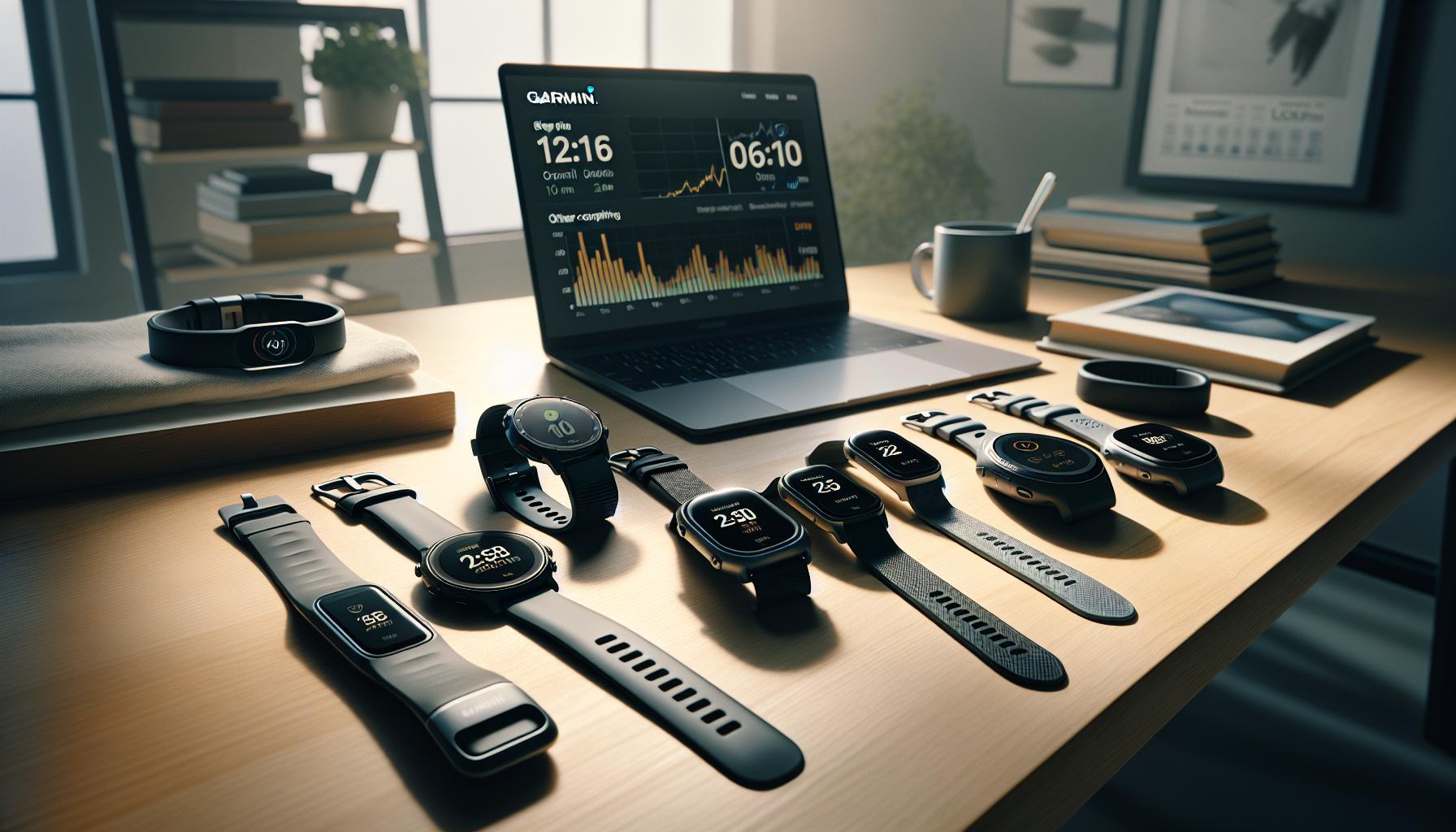
When to Consult Garmin Support for Tracking Issues
When you’re relying on your Garmin device for sleep tracking, it’s important to recognize when things aren’t functioning as they should. If you find that your sleep data is consistently inaccurate-such as the device misinterpreting wakefulness as sleep or providing no sleep data at all-this may warrant contacting Garmin Support. For example, users have reported instances where their devices recorded very little sleep or failed to start tracking despite the user being in bed and attempting to sleep [[1]](https://forums.garmin.com/outdoor-recreation/outdoor-recreation/f/fenix-8-series/383123/sleep-tracking-accuracy-on-fenix-8).
Consider consulting support if you notice significant discrepancies in the sleep data compared to what you expect based on your nightly habits. If after turning off sleep tracking and then re-enabling it the issues persist, the support team can provide guidance on potential software updates or settings adjustments that might rectify the situation. Garmin’s customer service may also assist in troubleshooting other hardware-related issues that could be affecting performance.
Common Scenarios for Reaching Out:
- Repeated inaccurate data, such as incorrect sleep duration or stages.
- Device fails to record any sleep data after multiple nights of use.
- Sleep tracking stops working after a device update.
- You check settings, and everything appears to be configured correctly but issues persist.
In engaging with Garmin Support, you can get clarifications on known issues, or they may offer solutions that have worked for other users. This can help you make the most out of your device and ensure that your sleep tracking experience aligns more closely with your expectations. If needed, they may also provide information on updates that could improve tracking accuracy, helping you maintain a healthier sleep routine.
Faq
Q: How can I disable sleep tracking on my Garmin device?
A: To disable sleep tracking on your Garmin device, go to the device settings menu, select ‘Activity Tracking’, and toggle off ‘Sleep Tracking’. This process can typically be completed in seconds! For detailed steps, refer to the Step-by-Step Guide to Turn Off Sleep Tracking section in the article.
Q: What happens to my health data if I turn off sleep tracking on Garmin?
A: If you turn off sleep tracking, the device will no longer record or analyze your sleep patterns. However, other health metrics like heart rate and activity data will still be recorded. For potential impacts on data accuracy, see the Impact of Disabling Sleep Tracking on Data Accuracy section.
Q: Will turning off sleep tracking save battery life on my Garmin device?
A: Yes, disabling sleep tracking may help extend your Garmin device’s battery life, as it reduces background activity. For more battery-saving tips, review the Troubleshooting Common Issues with Sleep Tracking section in the article.
Q: Why might someone want to disable sleep tracking on their Garmin?
A: Users may choose to disable sleep tracking due to inaccuracies in the data, disruption from notifications, or personal preference for not monitoring sleep patterns. For more reasons, check the Reasons to Disable Sleep Tracking section of the article.
Q: How can I improve sleep tracking accuracy on my Garmin device instead of turning it off?
A: To enhance sleep tracking accuracy, ensure your device is properly fitted, update the firmware, and adjust settings according to your sleep patterns. Explore the Adjusting Settings for Enhanced Sleep Tracking section for more tips.
Q: Can I temporarily disable sleep tracking on my Garmin device?
A: Yes, you can temporarily disable sleep tracking by toggling the feature off during certain nights or when not in use. For repeated switching, reference the Step-by-Step Guide to Turn Off Sleep Tracking section for convenience.
Q: How do Garmin’s sleep tracking features compare to other wearables?
A: Garmin’s sleep tracking features may vary in accuracy and detail compared to other wearables like Fitbit or Apple Watch. For a comparison of features, visit the Comparing Garmin Sleep Tracking to Other Wearables section in the article.
Q: When should I contact Garmin support regarding sleep tracking issues?
A: If you frequently experience inaccuracies or technical problems with sleep tracking despite adjustments, consider reaching out to Garmin Support. For guidance on this, refer to the When to Consult Garmin Support for Tracking Issues section.
Future Outlook
Now that you know how to quickly turn off sleep tracking on your Garmin device, you can enjoy uninterrupted rest without the worry of inaccurate data. Make this simple adjustment today to focus more on your sleep experience rather than the statistics. If you’re still curious about maximizing your health journey with Garmin, check out our guides on enhancing fitness tracking and understanding sleep health better.
Remember, making changes to your tracking settings is just a part of optimizing your wearable’s capabilities. For more practical advice on sleep studies or insights into preferred devices, visit our related articles. Don’t forget to share your thoughts in the comments below and subscribe to our newsletter for the latest updates on health tech. Empower yourself with the knowledge to make informed choices for your well-being-your best sleep starts here!
Get our latest guides, news, and insights highlighted in your Google Search & AI Overviews.